

LenguASR / Documentation
Setup & Blueprints
LenguASR converts microphone audio into text in Unreal Engine. It runs locally on your CPU and doesn’t send audio to cloud services. You can use its text and speech events for command matching, NPC logic or subtitles in your game.
Publisher: Arctensor Ltd. Support: Enable JavaScript to view
Prepare your project.
LenguASR currently supports Windows x64. Install a plugin build compatible with your Unreal Engine version, enable AudioCapture for microphone input, and download the recognition models through Tools → LenguASR Models.
Follow the installation steps below, then see Model installation for the model paths and packaging details.
Installation
- Close Unreal Editor.
- Install this plugin into YourProject/Plugins/LenguASR and enable it. You will also need to enable Epic's AudioCapture plugin.
- Restart Unreal Editor.
- Make sure you have a compatible build for your engine version.
In Unreal Editor:
- Go to Tools > LenguASR Models.
- Select Download / verify models to download Nemotron ASR and Silero VAD (about 708 MB).
- Wait for both models to finish installing before starting recognition.
Model weights are stored in YourProject/Plugins/LenguASR/Content/Models. The preconfigured Nemotron model supports about 40 languages. See Model setup for details.
When packaging, the build rules will stage the installed models as NonUFS files (including IoStore builds).
First Blueprint Setup
- Add the LenguASR Speech component to an actor in your level. Bind the On Final Transcript and On Error events before starting recognition.
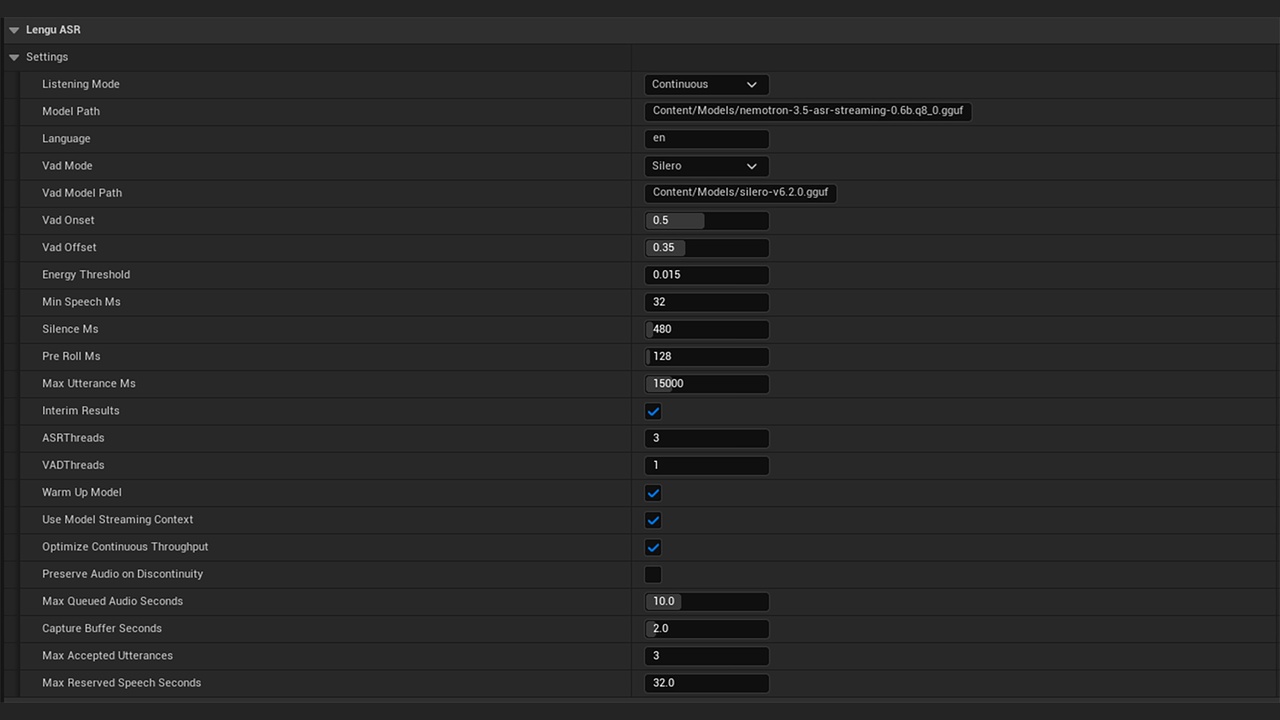
- In the component's Settings, choose Continuous if you want the microphone always on, or Manual for push-to-talk.
- Call Initialize Recognition (for example, during a loading screen) and wait for On Recognition Initialized. This loads the model if needed and gets the recognizer ready, but doesn’t open the mic yet.
- Call Start Listening with Use Microphone enabled. Device Index -1 selects the system default. If it returns true, input is active, and the Listening state means it's ready for speech.
- When On Final Transcript fires, read Transcript.Text. Use On Partial Transcript only if you need interim text (replace the partial for the same utterance rather than appending).
In Continuous mode, silence automatically ends each phrase, and the mic stays open. VAD runs independently. On slower CPUs, back-to-back speech can fill the buffer, so handle On Utterance Rejected to ask the player to try again. A final result can still be incomplete if recognition was interrupted or reached a time limit. Recognition can't guarantee a command was spoken correctly.
Loading, Stopping, and Memory
| Node or Event | Description |
|---|---|
| Load Model | Loads the model using the current Settings. Doesn't open the mic. By default, also warms inference resources. |
| On Model Loaded / Is Model Loaded | Tells you the model weights are in memory. To check whether inference is ready, use the recognition initialization events. |
| Initialize Recognition | Loads (if needed) and warms up the recognizer. It can follow Load Model immediately. |
| On Recognition Initialized / Is Recognition Initialized | Tells you recognition is ready. |
| Start Listening | Uses already loaded models or loads if necessary. Captures audio from the mic or external PCM. |
| Stop Listening (Finalize Pending Speech=true) | Stops mic capture, finishes current speech processing, and returns to the ModelLoaded state. |
| Stop Listening (Finalize Pending Speech=false) | Stops capture and discards pending recognition. Models stay loaded. |
| Stop And Clear | Cancels everything, including a graceful stop. Wait for ModelLoaded before restarting. |
| Unload Model | Cancels ongoing work and frees the model’s resources in the background. |
| On Model Unloaded | Tells you the resources have been released. Wait for this before loading a different set of resources. |
| Get Speech State | Returns states such as Stopped, Loading, Initialized, ModelLoaded, Listening, Stopping, Unloading, or Error. |
| Get Speech Backlog / Is Recognition Busy | Shows ongoing processing. 'Busy' is separate from using the microphone. |
Don’t call Start Listening every frame. Wait for state changes. Stopping keeps the model in memory; unloading frees it. EndPlay also releases resources, but may wait for background workers to finish. Unload before level travel if you need to avoid a long wait.
The component reads Settings when it loads the model. To change thread counts, VAD thresholds, recognition mode or queue limits, unload the model, adjust Settings and load it again. Changes made while listening don’t affect the current session.
Choosing the Microphone
Use Get Microphone Devices and pass the index from that list into Start Listening. Get a fresh list if devices change. The name shown in your UI doesn’t select the device, so check the plugin’s log for the index it’s using. Make sure Windows allows desktop apps to access the mic.
With Remote Desktop audio, some drivers cause gaps that repeatedly reset phrases. Try lenguasr.PreserveAudioOnDiscontinuity 1 before loading. This keeps the samples that arrived, but can’t restore missing words. Reset it to -1 to use the component setting. Don’t treat interrupted results as complete commands.
In Continuous mode, speech is processed live, and VAD marks the end of a phrase. If the previous phrase is still decoding when a new one arrives, the new phrase joins the queue. Queue limits help keep waiting times down, but don’t guarantee fast recognition.
External Audio
You can feed external PCM audio by calling Start Listening with Use Microphone disabled. Once Listening is active, call Push Audio with 8-96 kHz interleaved float PCM (1-8 channels, up to 1 second per call). The plugin converts it to 16 kHz mono. Keep the format consistent during a single recording and stay within the buffer limits. Push Audio isn’t a file-upload queue.
If No Text Appears
If you see no text:
- Enable lenguasr.LogProgress 1.
- Check for On Error or On Utterance Rejected events.
- Check that incoming audio has a nonzero level and is advancing in the logs.
- If decoding is slow, monitor backlog usage or reduce simultaneous listeners.
- In Manual mode, stop and finalize a short recording before the queue fills.
- For always-on capture, choose Continuous mode.
A final phrase followed by silence should eventually finish decoding. Whether recognition can keep up with continuous speech depends on the CPU.
C++ and Existing Projects
The component class is ULenguASRSpeechComponent, and types begin with FLenguASR... Add 'LenguASR' to your module dependencies, and include 'LenguASRSpeechComponent.h.' The native DLL and CPU macros also keep their original names.
When upgrading a project, remove the old plugin folder first. Make sure you don’t enable two copies of the same module. Your existing component references will still work.
If you need help, send us your engine version, CPU, microphone, listening mode, relevant Settings and LenguASR logs.
Native library versions.
The libraries included with the plugin use MSVC 14.38.33130 by default. You’ll also find ZIP archives for these versions in the plugin’s LenguASR/Source/ThirdParty folder:
LenguASR-Win64-MSVC-14.38.33130.zipLenguASR-Win64-MSVC-14.44.35207.zip
To switch versions, remove the old library files and replace them with the version you need. Keep the same file paths and folder structure.
Support
Need help?
Send us your engine version, CPU, microphone, listening mode, relevant settings and LenguASR logs.